
Install your eSIM
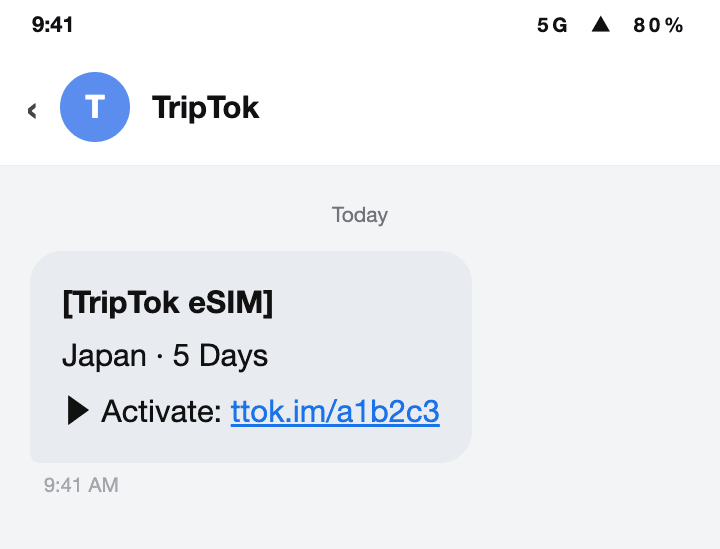
Open the install link from your SMS, email or KakaoTalk message
In the TripTok app, tap the product in [My Data].
Enter the last 4 digits of the phone number you used to buy
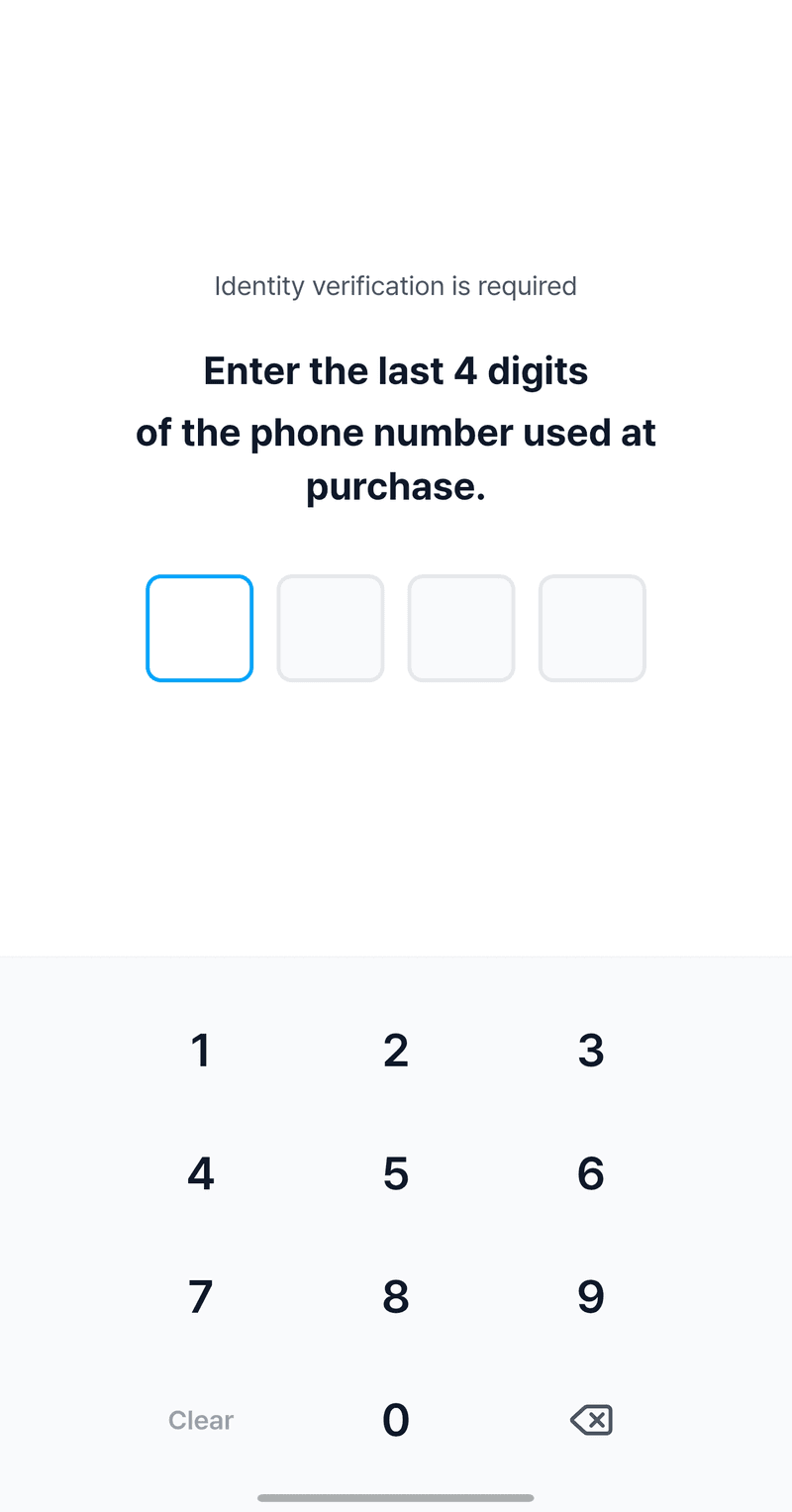
If it says the number doesn't match
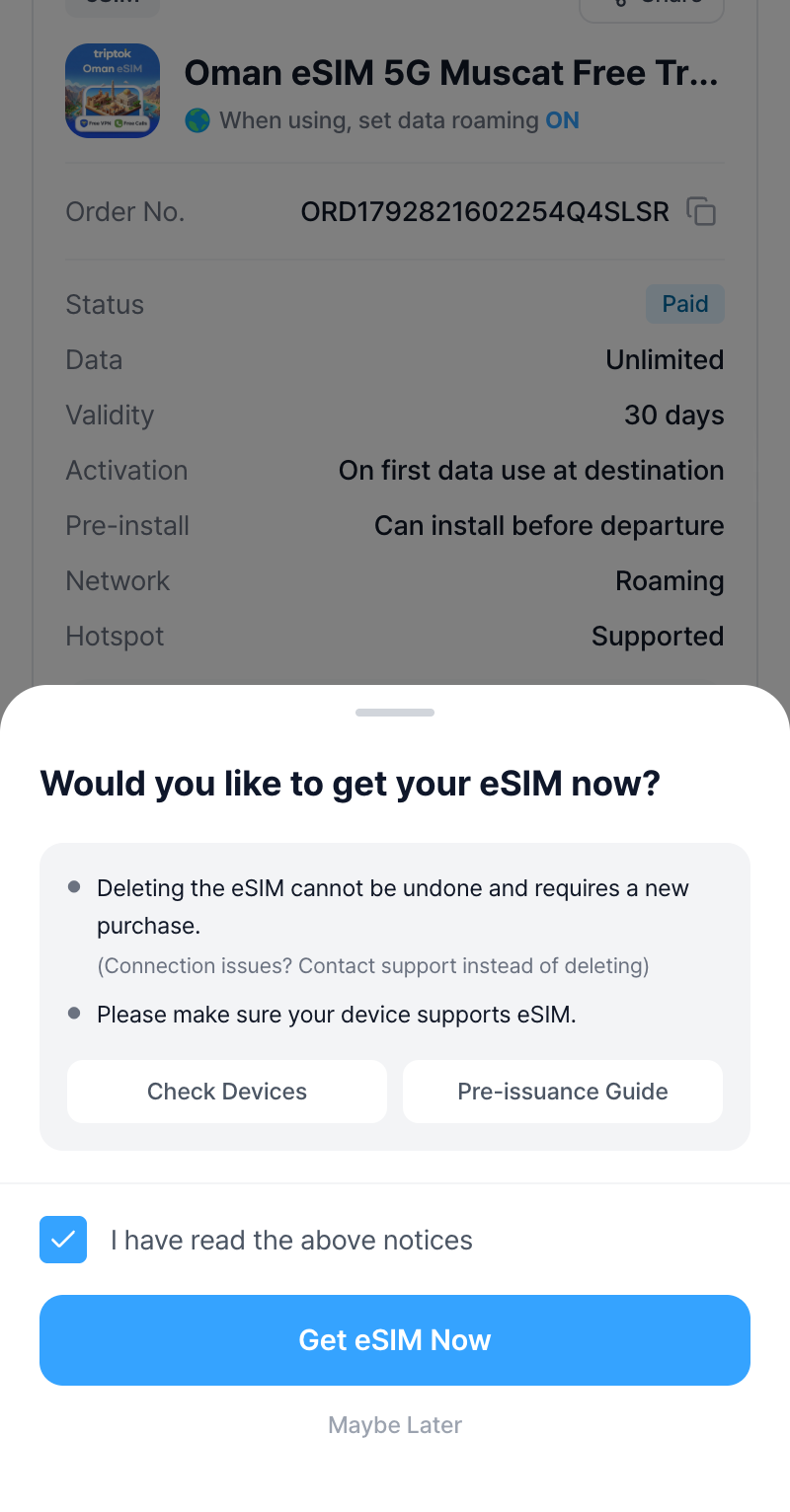
Check [I have confirmed the above] and tap [Get eSIM]
Your eSIM is being issued. This can take up to 5 minutes
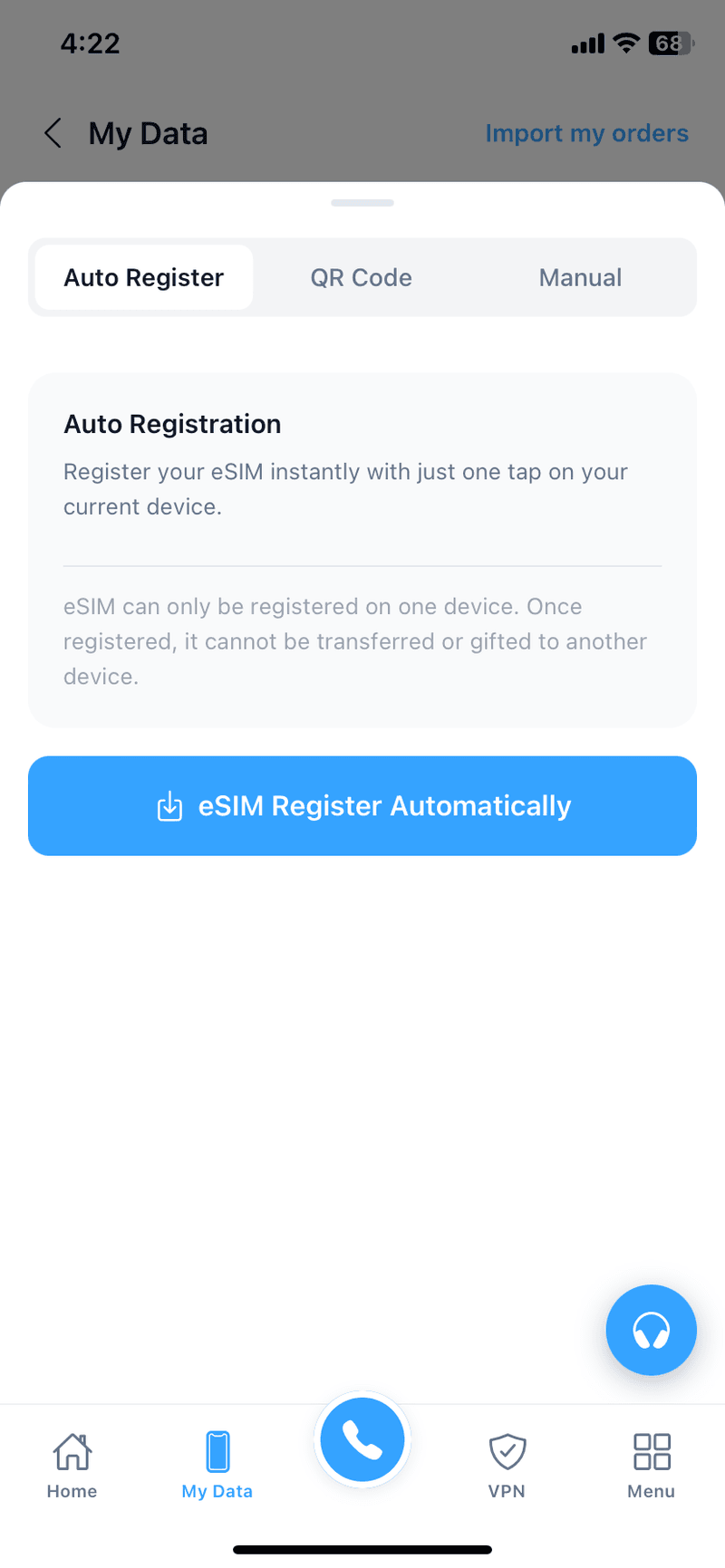
Tap [Auto Install], then [Auto Install eSIM]
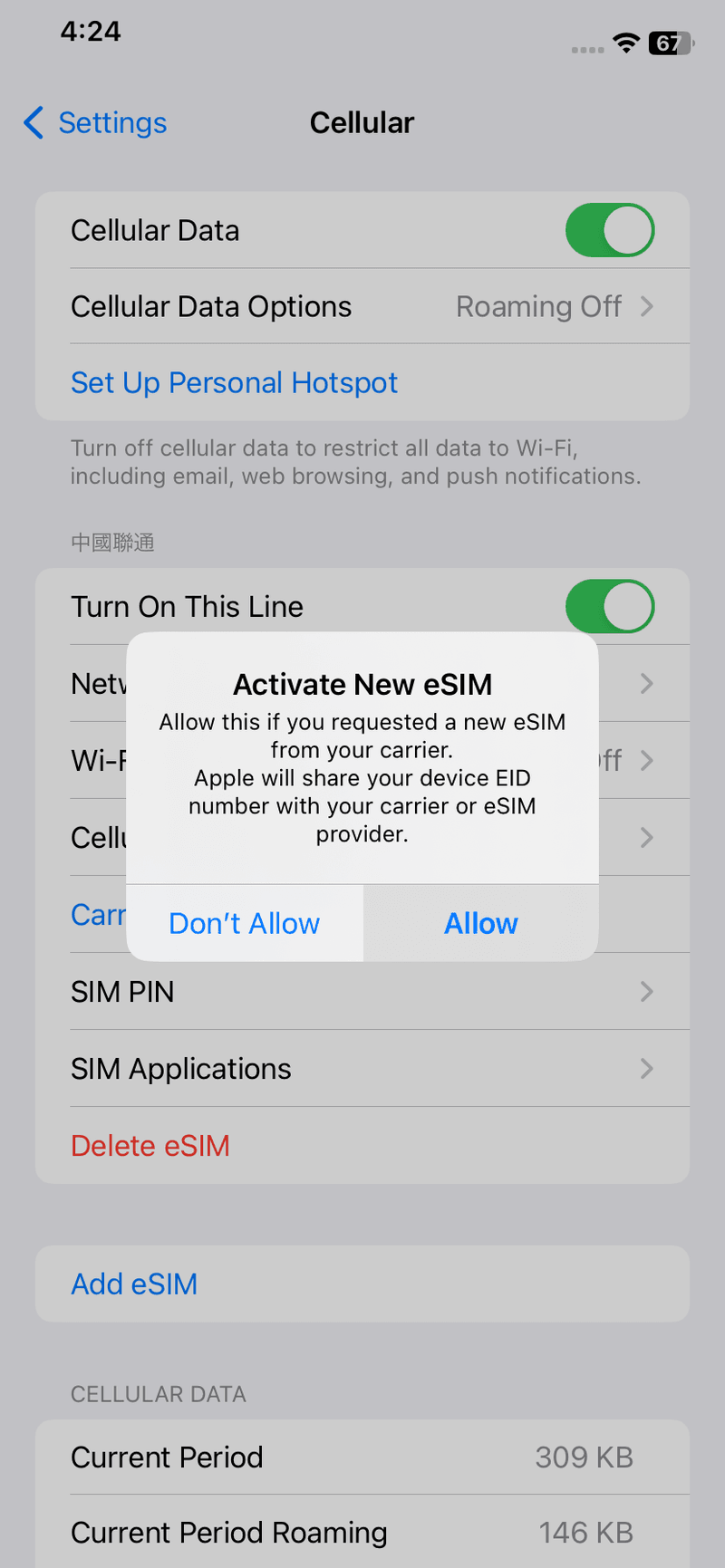
When the Cellular screen opens, tap [Allow]
When setup finishes, tap [Done]
If you're asked to choose a line name, pick an easy one such as 'Travel'.
If nothing opens or it says the server can't be found
Leave the travel line off and head out
To avoid roaming charges while you're still in Korea, keep the travel line off and keep using your primary line.
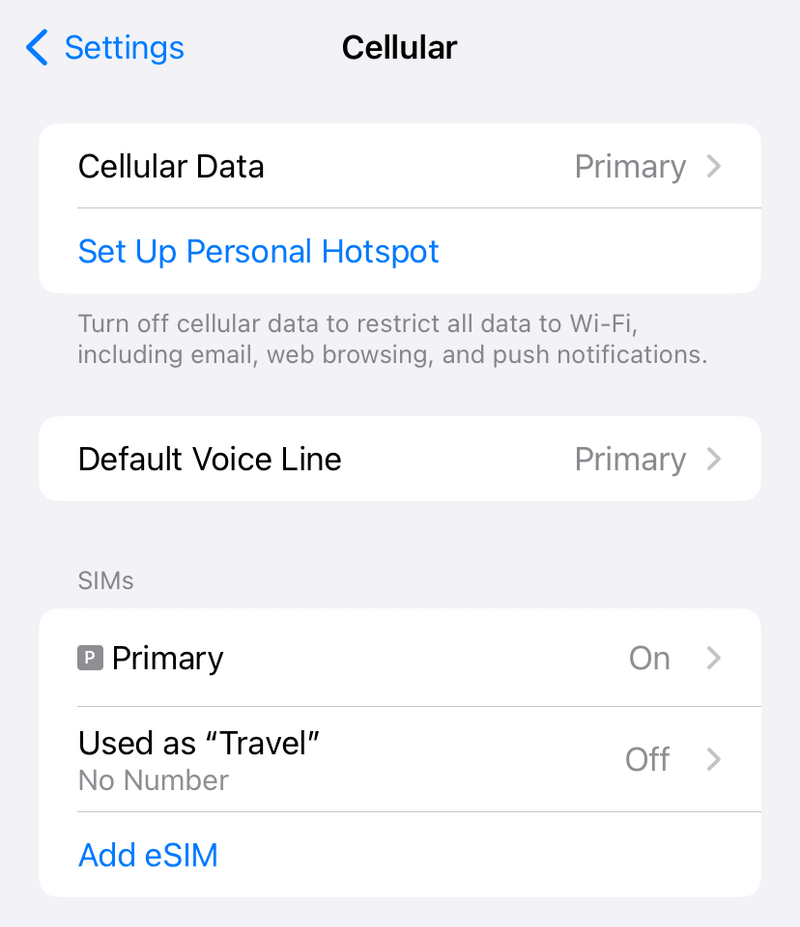
Set it like this
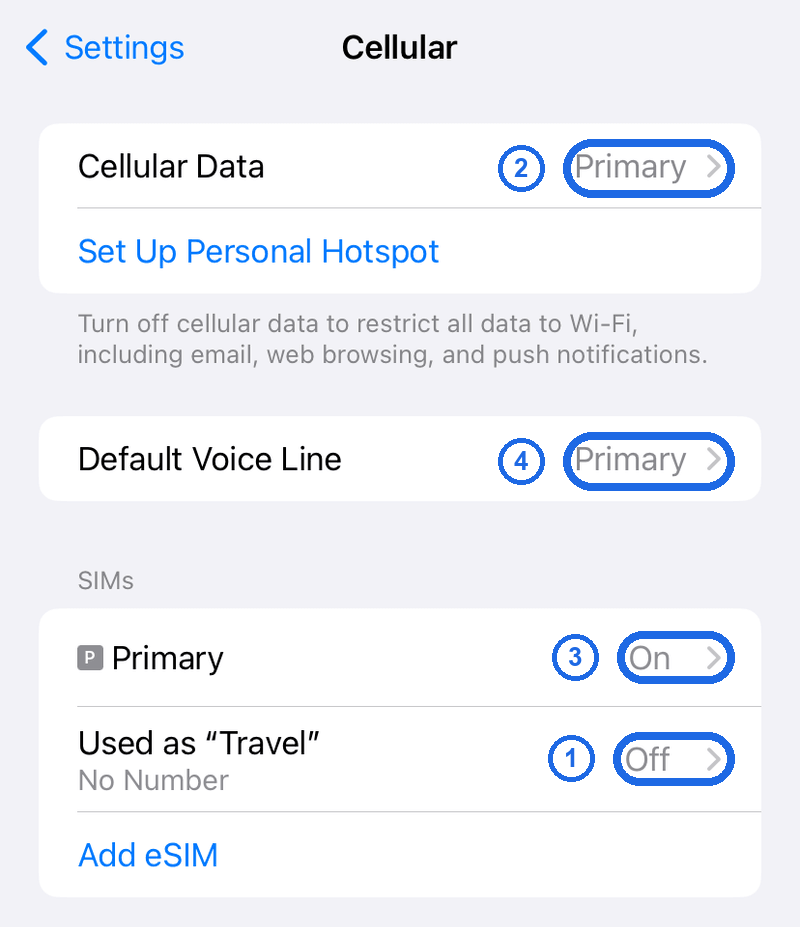
Turn on data
Turn off airplane mode and go to Settings › Cellular. It takes about a minute.
Turn on the travel line
Turn the line back on that you turned off in Korea.
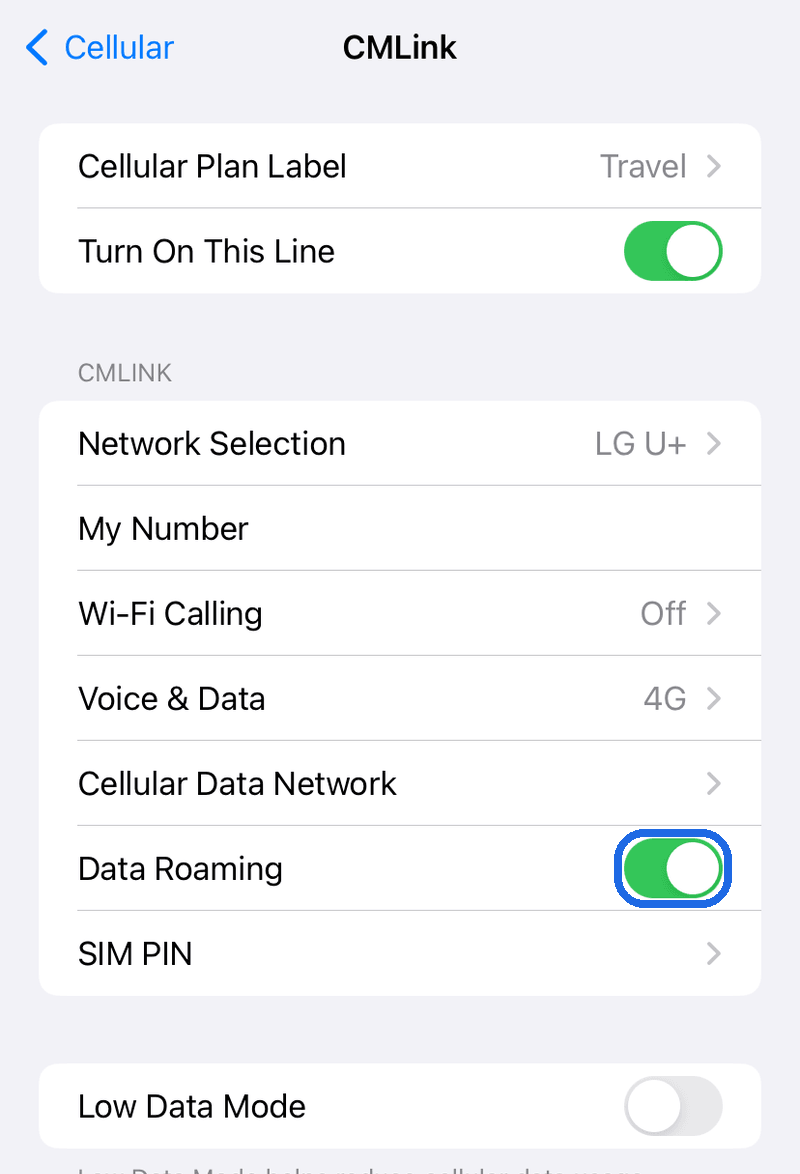
Turn on data roaming for the travel line
It must be on to use data abroad. You're only charged through your TripTok plan.
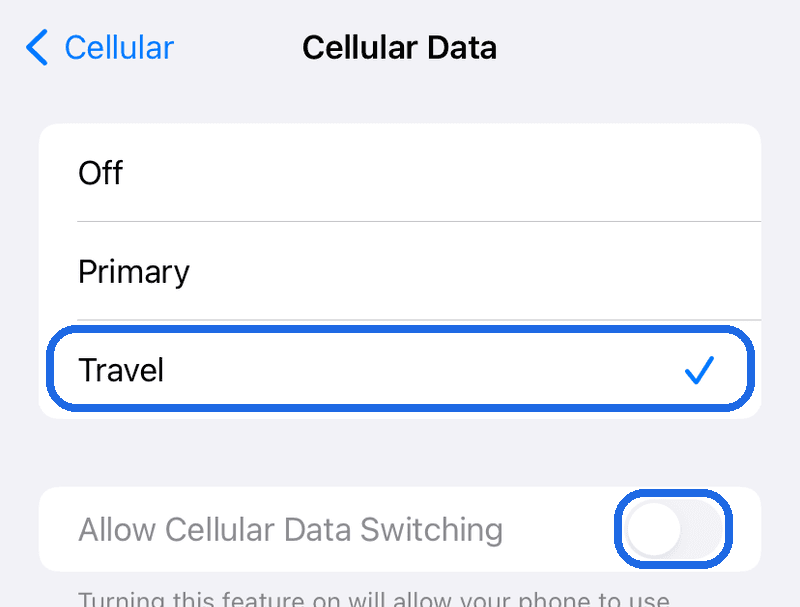
Set Cellular Data to the travel line
Keep Allow Cellular Data Switching off. If it's on, your primary line's data may be used and you may be charged.
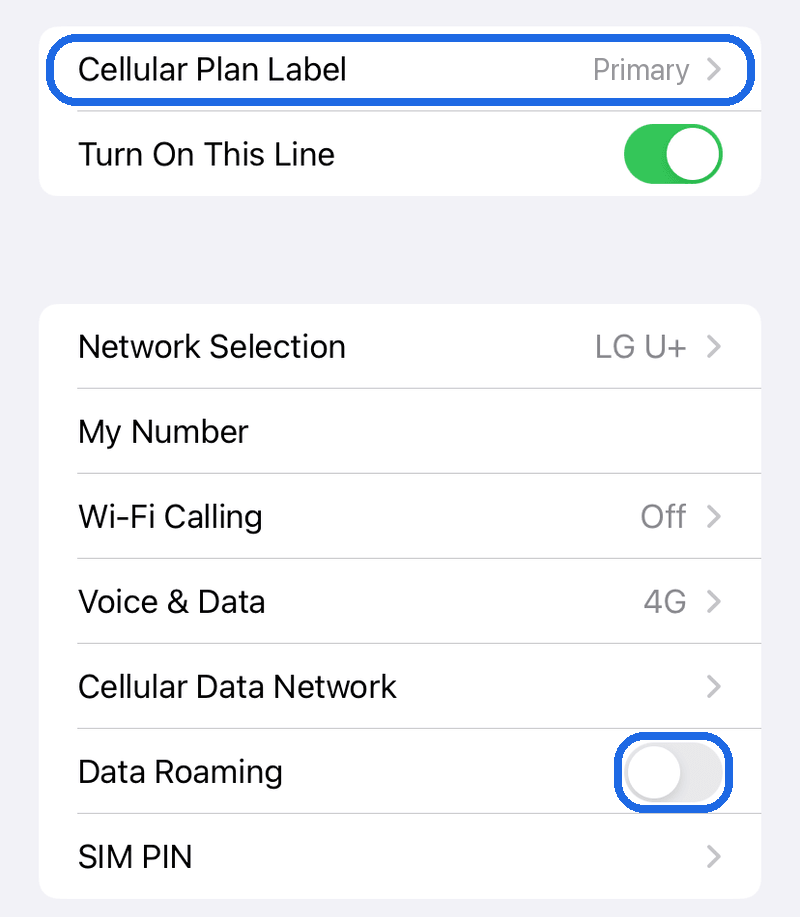
Turn off data roaming for the primary line
This prevents roaming charges from your home carrier.
Keep the primary line as the default voice line
You can still receive calls and texts to your home number. Charges for receiving depend on your carrier.
When you're done, it looks like this
Turn off Wi-Fi. If LTE or 5G shows at the top of the screen, you're connected.
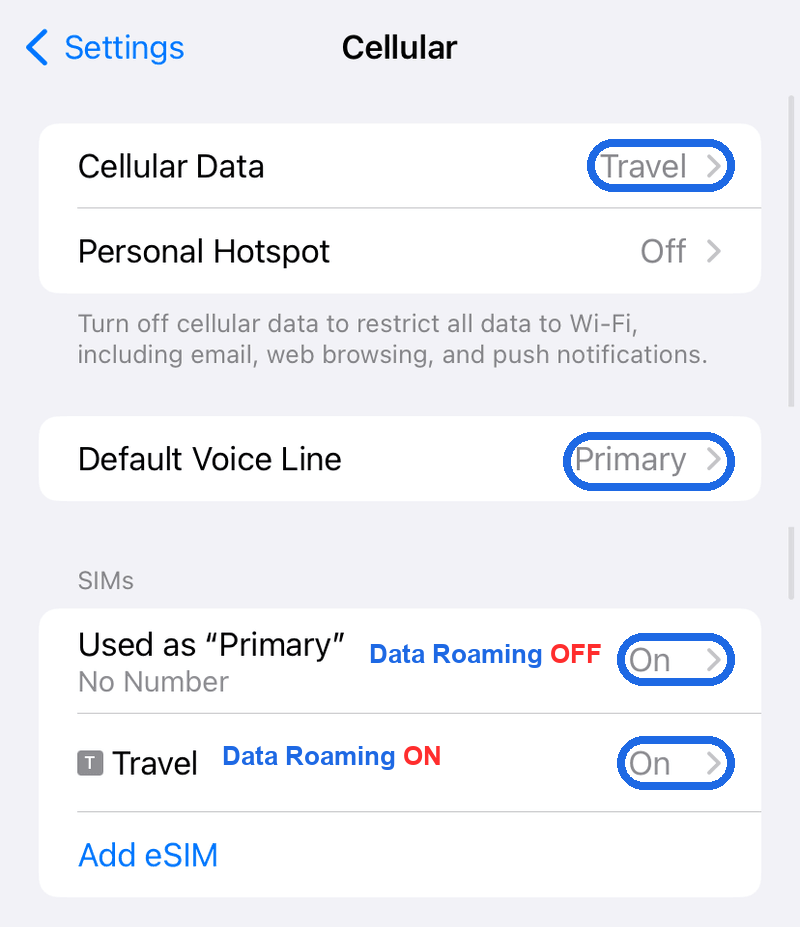
If it doesn't connect right away, turn airplane mode on and off or restart your phone. The first connection can take a few minutes.
Still not working?
Frequently asked questions
Can I install it in advance?
For most plans, the period starts when you connect to a network at your destination. Only install after arrival if the product details say the plan starts on installation.
Can I delete the eSIM?
Please don't. Most eSIMs can only be installed once, so if you delete it you can't install it again.
To get calls to your Korean number abroad
To receive them in the TripTok app, set up call forwarding and make a test call before you leave. Texts aren't forwarded.
How to set up call forwardingHow do I know it's installed?
If a new line appears in the SIM list under Settings › Cellular, it's installed. If you install again when it's already there, you'll get a 'code already used' error. Don't delete it, just go to the next step.
I get a 'code already used' error
It's usually already installed. First check whether a new eSIM is in your line list. If it is, don't delete it, just go to 'Before you fly'.
It asks for a confirmation code
Only fill it in if the install screen shows a separate confirmation code. Otherwise leave it empty.
I don't have another phone or computer to show the QR code
The camera can't scan a QR code on its own screen. On iOS 17.4 or later, press and hold the QR code in an email or browser and choose Add eSIM. On earlier versions, use auto install or enter it manually.
I'm worried about charges on my home number
If data roaming and automatic data switching are off on your primary line, your home carrier won't charge for data. Charges for receiving calls and texts depend on your carrier.
I can't find the menu
Type 'roaming' or 'cellular' in the search bar at the top of Settings to jump straight to that screen. You change settings on the Cellular screen. General › About only shows information.
Do multi-country plans need different settings?
Plans that cover several countries (for example the US, Canada and Mexico) may need different roaming settings in each country. Follow the product details.