
 iOS
iOSAfter Arrival eSIM Setup Guide
Once you've arrived, activate your eSIM!
Please check before installation/use!
- 1.Please check that data roaming is OFF and auto data switch is OFF for your main line, and data roaming is ON before use.
- 2.If installing locally, plans can only be added in a network environment (check Wi-Fi connection status).
Video Guide
Part 1
Activate eSIM After Arrival
Step 1.
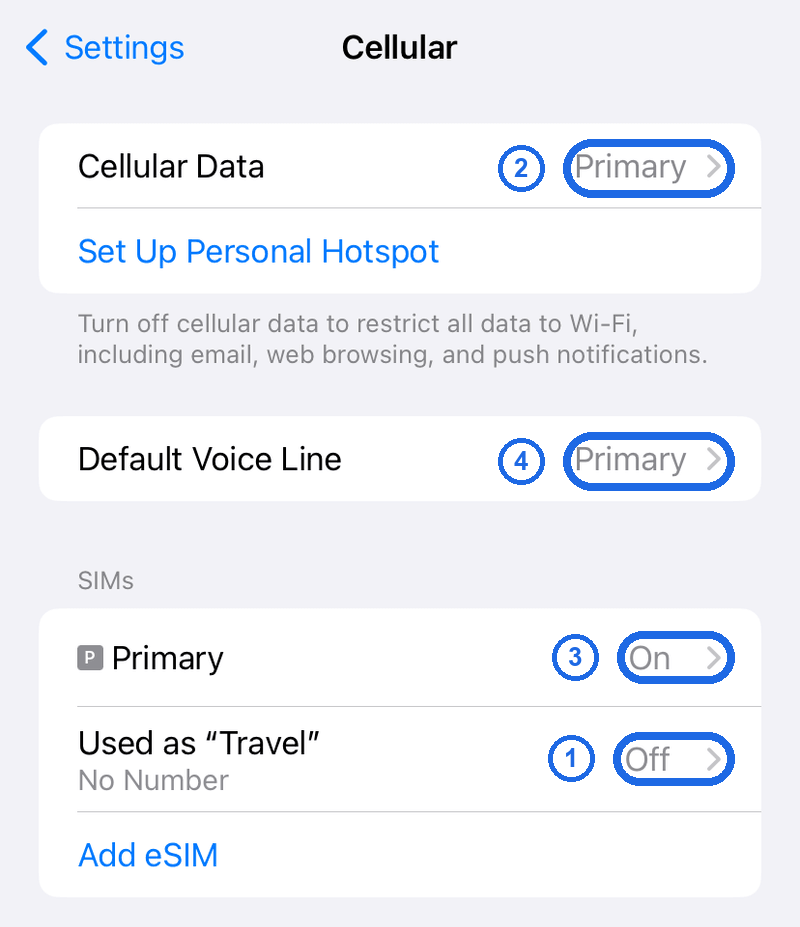
Go to [Settings] > [Cellular]
If you pre-installed your eSIM before departure, your screen should look like the image below.
Follow steps ①, ②, ③, ④ in order as shown in the guide below.
Step 2.
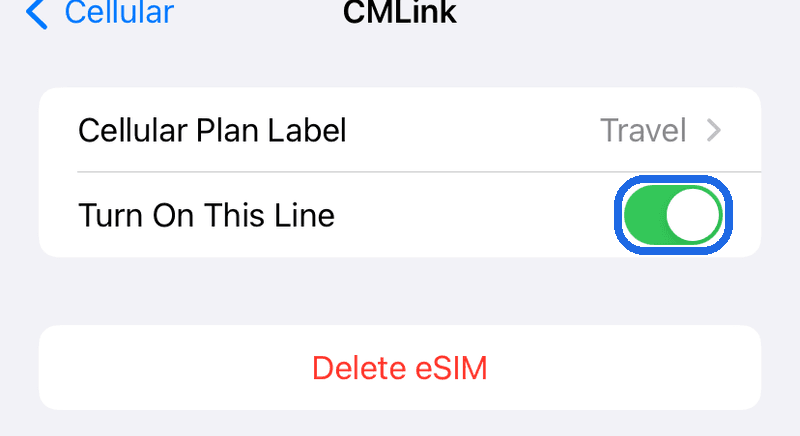
SIMs Travel eSIM: OFF → ON
Turn on the travel eSIM by toggling [Turn On This Line]. Then go back.
Step 3.
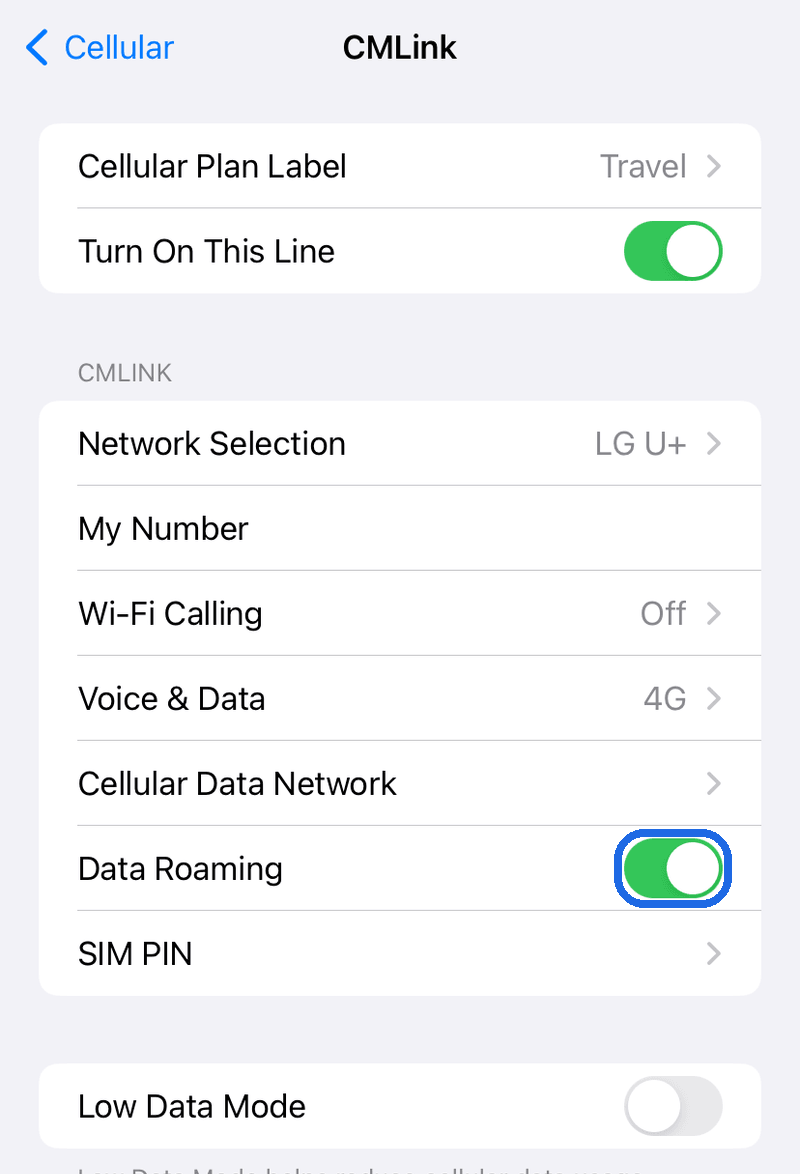
SIMs Travel eSIM → Data Roaming 'ON'
tip
For local network products, turn OFF data roaming for Travel eSIM
Step 4.
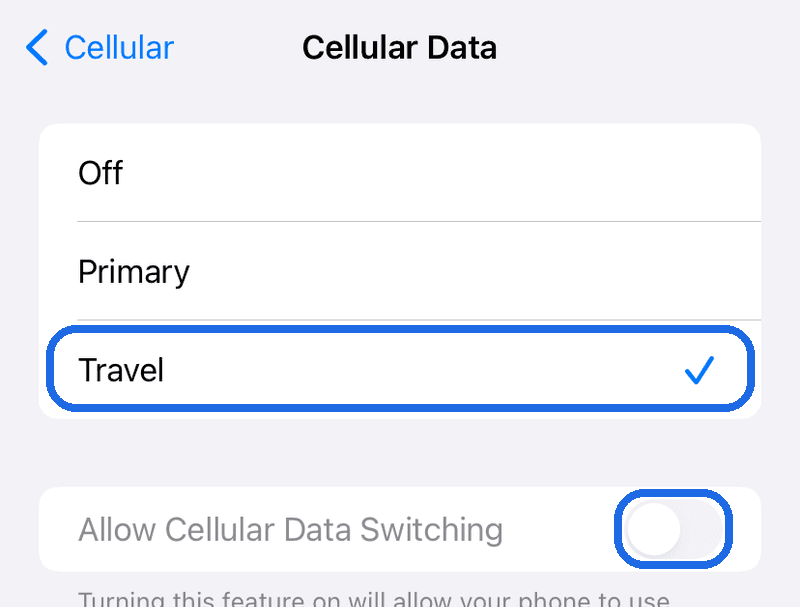
[Cellular Data] > [Main] → [Travel]
Go back.
Tap [Cellular Data] and change it from [Main] to [Travel].
Keep [Allow Cellular Data Switching] turned OFF.
tip
Cellular data switching is a feature that switches to another SIM when data is unavailable.
Step 5.
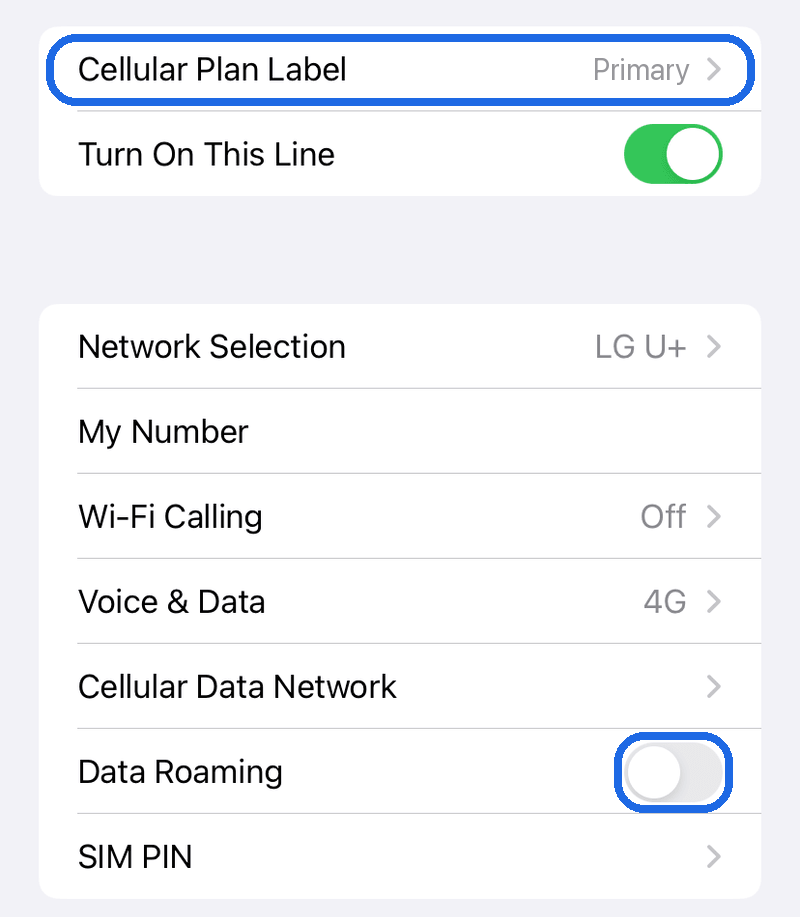
SIMs Main: Keep ON → Turn OFF Data Roaming
Go back.
Tap SIMs - Main line and turn OFF [Data Roaming].
Step 6.
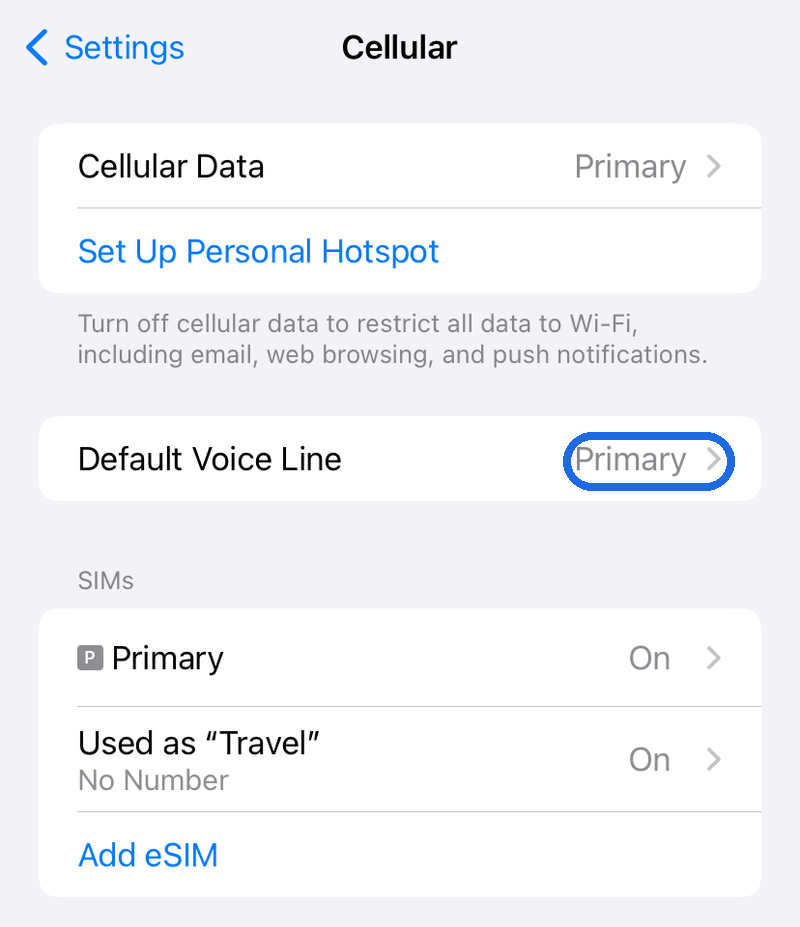
[Default Voice Line: Keep 'Main']
Go back.
Make sure the Default Voice Line is set to 'Main'.
tip
When the default voice line is set to Main, you can use regular calls and messages.
Note that charges may vary depending on your carrier's roaming policy.
Part 2
Final eSIM Activation Check
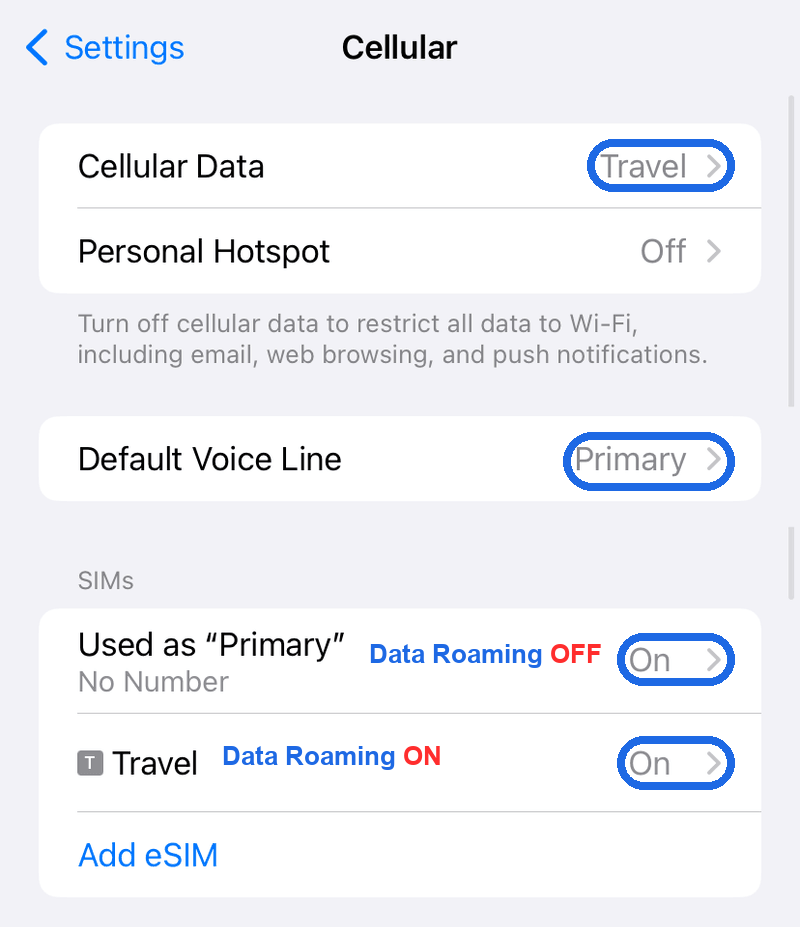
If your settings match the image below, your eSIM activation is complete! Enjoy your trip with TripTok!
Step 1.
Final settings check
Still not connecting?
- 1.Try turning airplane mode on and off.
- 2.Try restarting your iPhone.
- 3.Try turning the eSIM off and on again.
- 4.If the above methods don't work, please contact customer service.
eSIM installation is complete!
Have a safe and enjoyable trip