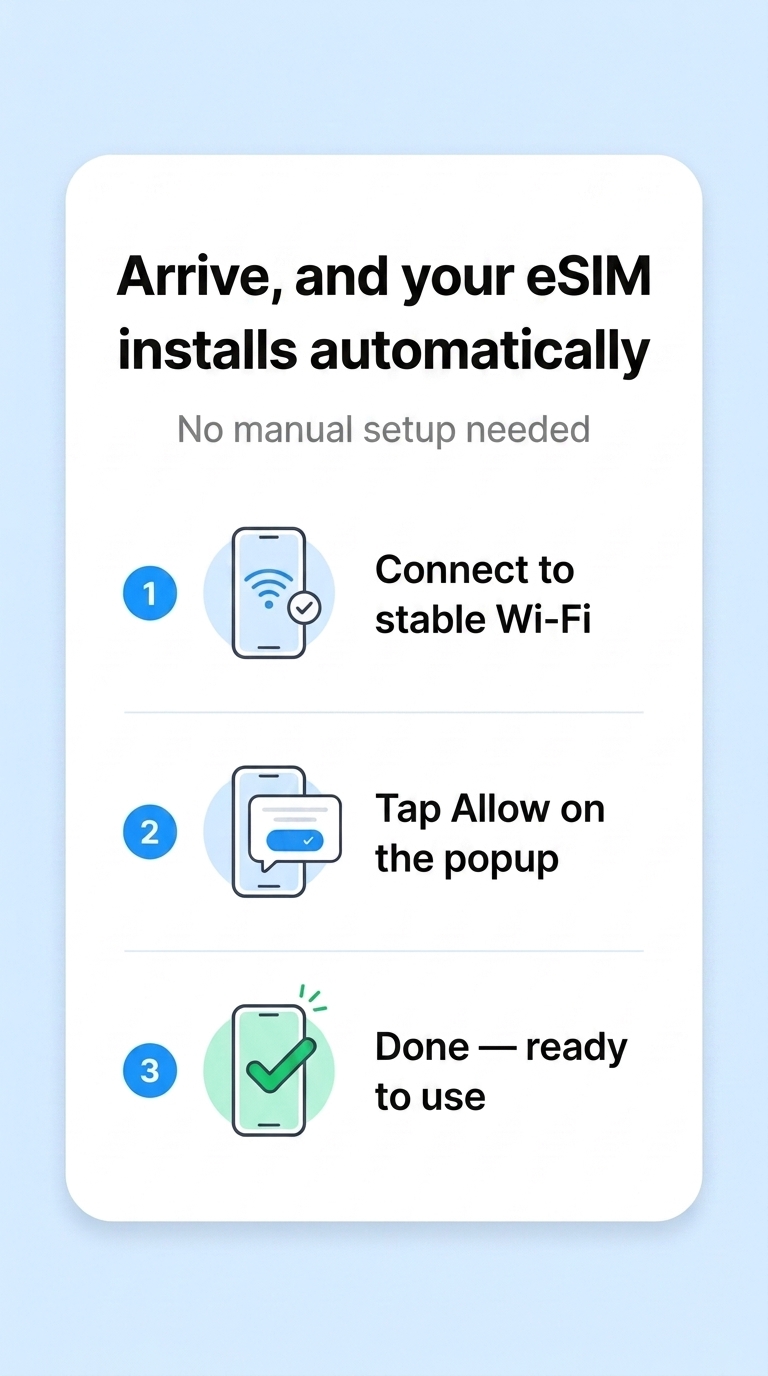
Your eSIM installs automatically when you arrive at the airport
The whole flow at a glance
From purchase to use, here's how it works
No manual installNo complex setupAuto-connects on arrival
1
Purchase completePay for the local-number eSIM
2
Enter device infoEnter EID·IMEI2 via the message link
3
Set activation dateChoose your departure date
4
Arrive & connect Wi-FiConnect to stable Wi-Fi
5
Auto-install & useJust tap Allow on the popup
Activation schedule
By when should I enter my info?
Set your activation date to your departure date.We'll activate it so it's ready the moment you arrive.
Enter device info and activation date at least 3 days before departure.
If you enter it late, carrier activation may be delayed.
Entering 1–2 days before departure is safest.
Not installing automatically?
If the popup doesn't appear, try these in order
1
Reboot while on Wi-FiKeep Wi-Fi on and restart your device.
2
Switch Wi-Fi networksTry a stable Wi-Fi (hotel, restaurant) instead of airport Wi-Fi.
T-Mobile carrier customers: manual activation QRIf the popup still never appears, add the eSIM manually with the QR below. Always try while connected to Wi-Fi locally.
Add it only after you arrive in the US
Adding the eSIM with this QR outside the US (including in Korea) may block the line. Scan it only after you arrive in the US and connect to Wi-Fi.
Manual activation QR
iPhoneSettings > Cellular > Add eSIM
GalaxySettings > SIM manager > Add eSIM
Never delete an eSIM that's already installed. It cannot be reinstalled.