
How to Use USIM
Guide to installing and using your TripTok USIM
Before You Start
- 1.Replace the SIM only after arriving at your destination. Replacing before departure will disable your existing calls/texts.
- 2.Keep your original SIM card safe — do not lose it.
- 3.Prepare a SIM ejector pin. A paperclip can be used as an alternative.
- 4.USIM only works on phones with a SIM slot. eSIM-only devices (no SIM slot) are not supported.
Register Your USIM Serial Number (ICCID)
After receiving your USIM, register its serial number first using the link sent to you by SMS or email
Step 1.
Open the registration link in your message
Tap the 'Register USIM Serial Number' link sent to you by SMS or email after your purchase.
Step 2.
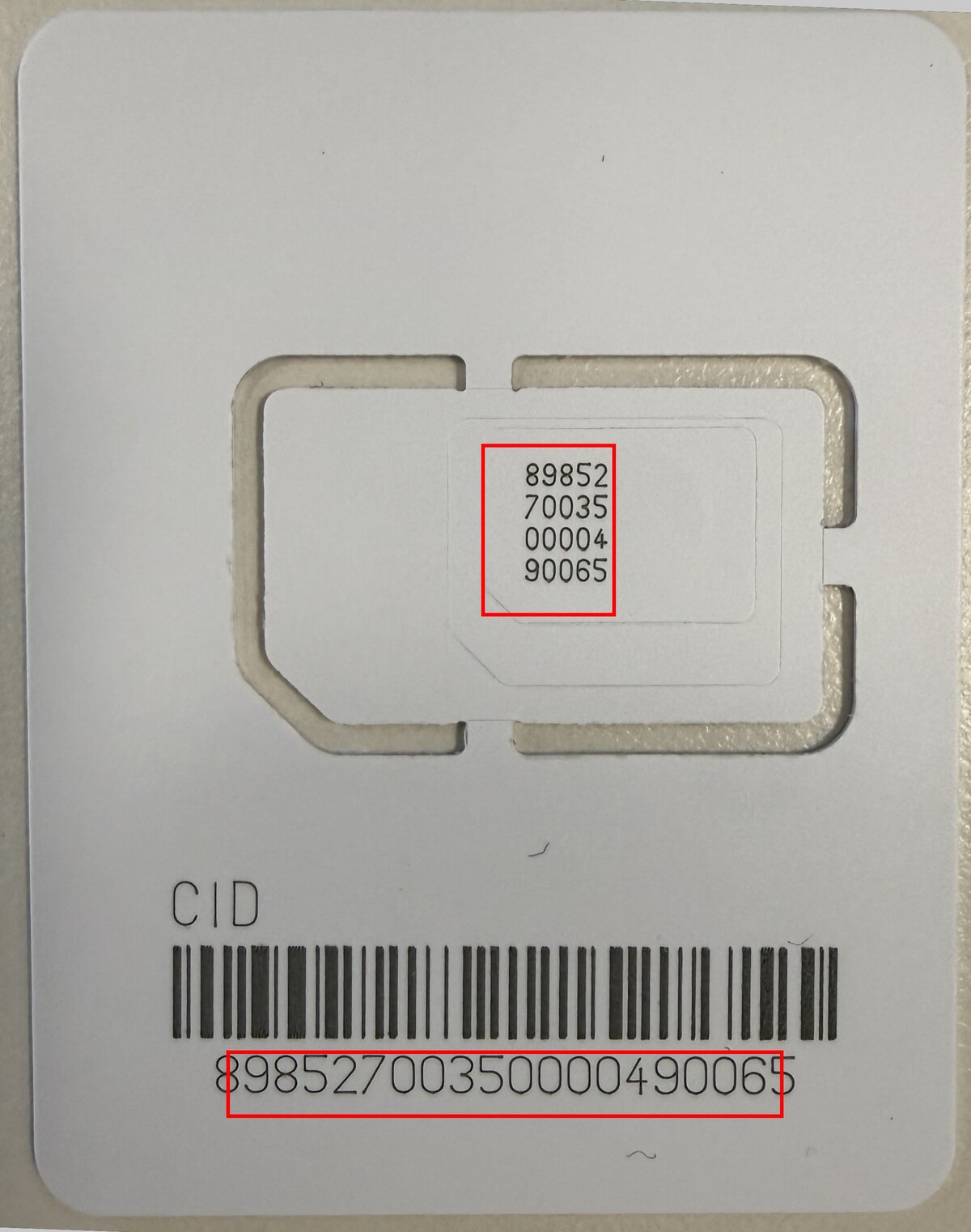
Find the serial number (ICCID) on your USIM card
Locate the ICCID (serial number) printed on the card holding your USIM. It appears in two places on the front (inside the tray and above the barcode).
Step 3.
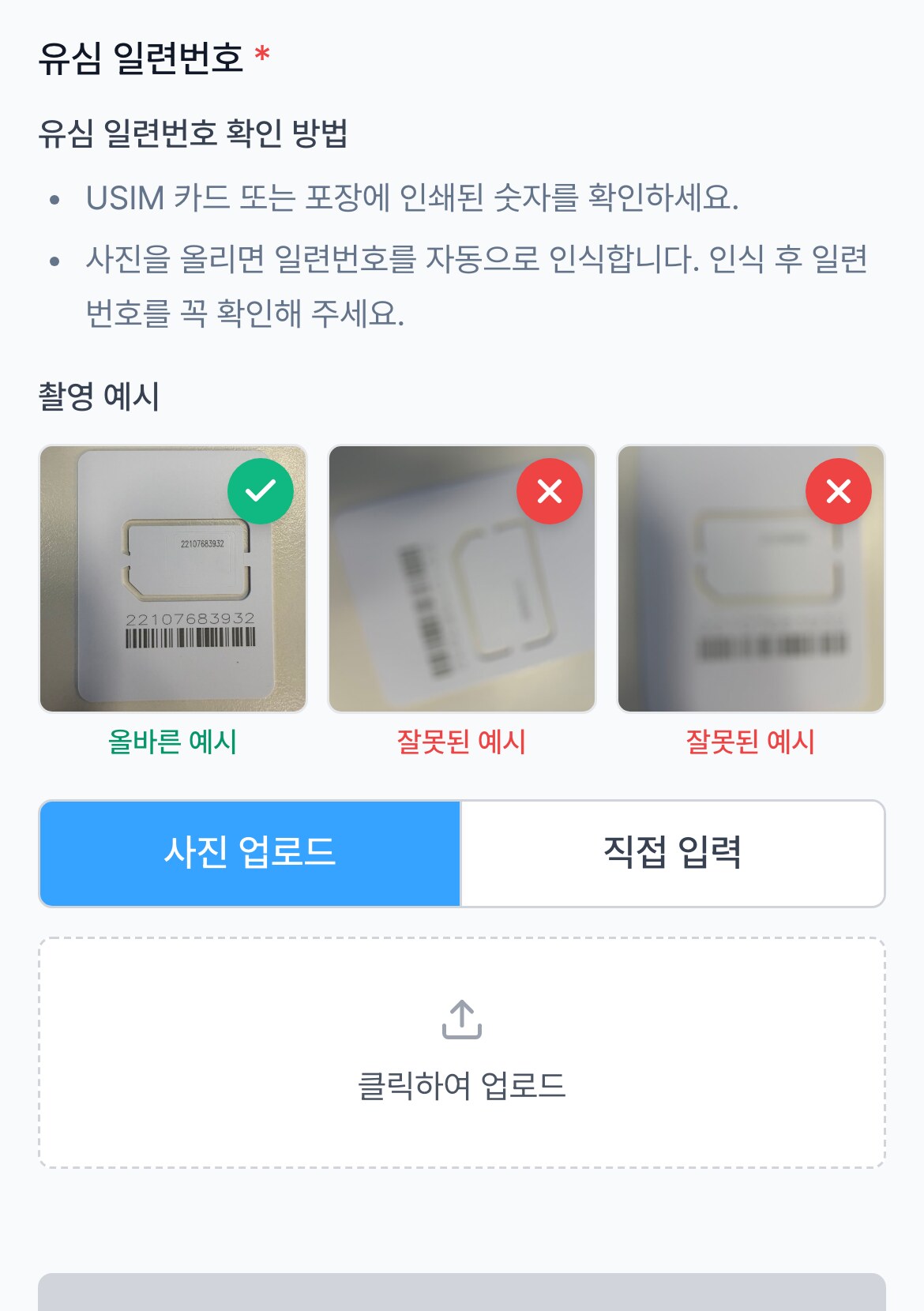
Take a photo or enter it manually
Take a photo of the card and the serial number is recognized automatically. Check that the recognized number matches the card, then register it. You can also enter it manually.
Step 4.
Wait for activation after registering
Once registered, activation begins. We'll notify you when activation is complete.
You must register your USIM serial number before departure. Your product is issued only after registration is complete — then just swap in the USIM locally to start using it.
Didn't receive the registration link?
You can register directly with just your order number
Step 1.
Scan the QR code
Scan the QR code below with your phone camera to open the USIM registration page. You can also enter https://ttok.im/u directly in your browser.

Step 2.
Enter your order number
Enter the order number from the store where you bought the USIM (Coupang, Naver, etc.). We will find your order and take you to the serial number registration screen. Depending on the order, you may be asked to verify your identity with a code sent by SMS or email.
If you received a registration link by SMS, email, or KakaoTalk, please use that link instead. This method is for when the link never arrived or the message was deleted.
Replace Your SIM
Remove your current SIM and insert the TripTok USIM
Step 1.
Turn off your phone
Always turn off your phone before replacing the SIM card.
Step 2.
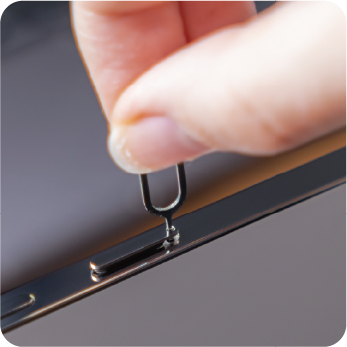
Open the SIM tray
Insert the SIM pin into the small hole on the side of your phone and push to eject the tray.
Step 3.
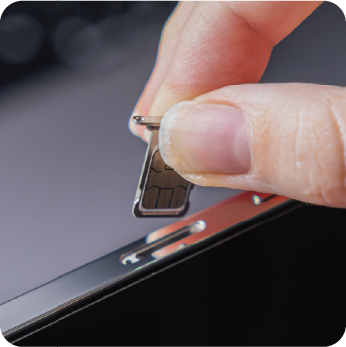
Remove current SIM and insert TripTok USIM
Keep your original SIM safe, place the TripTok USIM on the tray, and slide it back in.
Step 4.
Turn on your phone
Your phone will automatically recognize the new USIM.
Set Up Data
Configure data roaming after replacing the USIM
iPhone Settings
Step 1.
Go to Settings > Cellular
Make sure Cellular Data is set to the new USIM line.
Step 2.
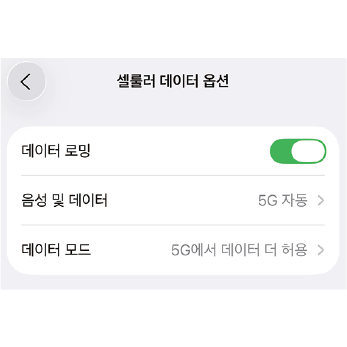
Turn on Data Roaming
Go to Settings > Cellular > Cellular Data Options > Turn Data Roaming ON.
Step 3.
Check network connection
If you see a carrier name and LTE/5G in the status bar, you're connected.
Android Settings
Step 1.
Go to Settings > Connections > SIM Manager
Check that the new USIM is recognized and set it as the mobile data SIM.
Step 2.
Turn on Data Roaming
Go to Settings > Connections > Mobile Networks > Turn Data Roaming ON.
Step 3.
Check network connection
If you see a carrier name and LTE/5G in the status bar, you're connected.
Troubleshooting
Try these steps if you can't connect
Step 1.
Toggle Airplane Mode
Turn Airplane Mode ON, wait 10 seconds, then turn it OFF.
Step 2.
Restart your phone
Turn your phone off and back on.
Step 3.
Manual carrier selection
Go to Settings > Carrier > turn off Automatic, then manually select the recommended carrier.