
Worldwide eSIMs
Sell the same countries, plans and prices as the TripTok store.
TripTok POS
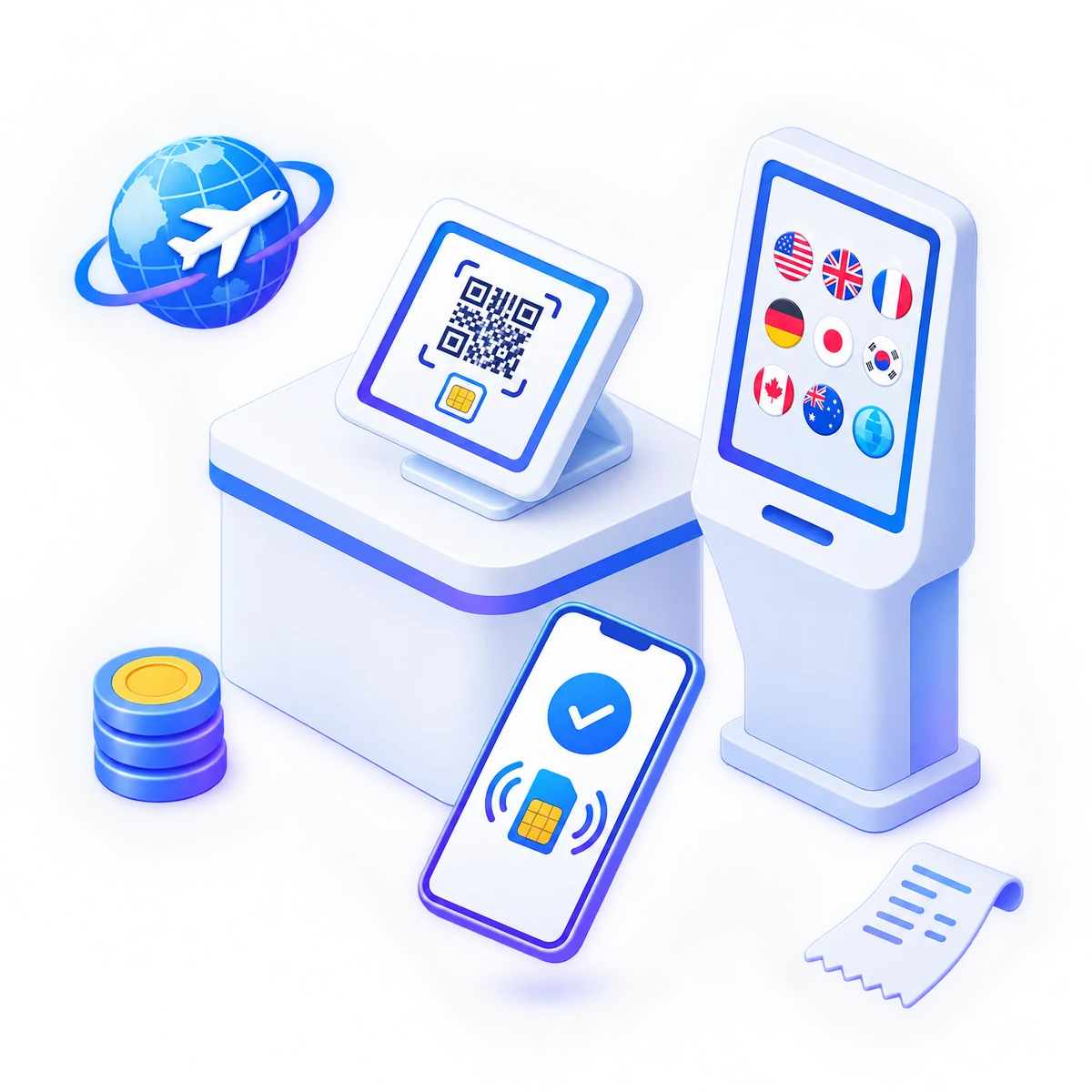
Sell the same worldwide eSIM plans as the TripTok store at your counter or kiosk. Pay with prepaid credit, and guide installation by QR, SMS or email.
Sales screen
Look at the screen with your customer and finish a sale in four steps.
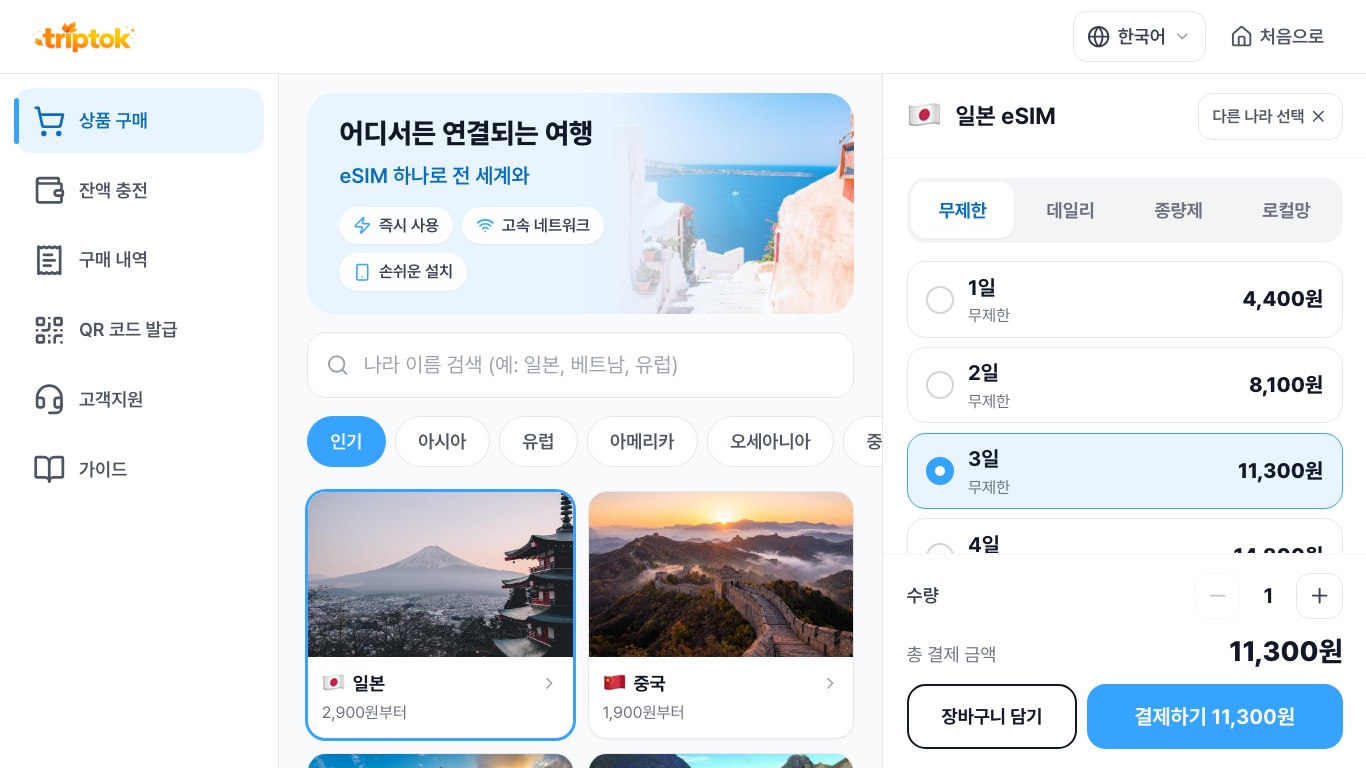
Choose the travel destination to see the plans available there.
Compare duration and data, then pick a plan.
The price shown on screen is deducted from your store credit.
After the activation notice, show the install QR and send the install guide to the customer's phone number or email.
Features
Everything a store needs to sell eSIMs, in one place.
Sell the same countries, plans and prices as the TripTok store.

Pay with credit prepaid to your store account. No card terminal integration needed.

Show QR explains activation and then shows the install QR. SMS, email and receipt printing are included.

Fits POS terminals, tablets, phones and portrait kiosks.

Switch the screen to Korean, English, Japanese or Chinese (Simplified and Traditional) at any time.

See your store's sales and find a customer's eSIM to show its install QR again.
Two modes
Switch modes on the same device to match how your store works.
Staff sell at the counter.
Customers choose and buy on their own at a kiosk.
Getting started
From your store number to your first sale
Contact us and TripTok issues a store number for your store's member account.
Sign in to TripTok with the store's member account and top up credit.
Sign in to TripTok with your store's member account and the sales screen opens right on this page.
Pick a plan, pay with credit, then guide installation by QR, SMS or email.
FAQ
No. You pay with credit prepaid to your store account, so you can sell without a card terminal.
Sign in to TripTok with the store's member account and top up in the Credits menu. Each sale deducts the price shown on screen.
Any POS terminal, tablet, phone or kiosk with a web browser — just sign in to TripTok with your store's member account. No app installation needed.
If the customer's phone number or email is entered right after purchase, the install guide is sent to them. In store, find the eSIM in Purchases > Customer lookup to show the QR again.
TRIPTOK POS
Leave your store details and our team will get in touch.